Creality Falcon with BeamSketch: free software in your browser
Got a Creality Falcon and looking for simple, free software? BeamSketch runs right in your browser, knows the Falcon models and sends your jobs to the laser via USB. I built and tested BeamSketch with my own Creality Falcon 10W.
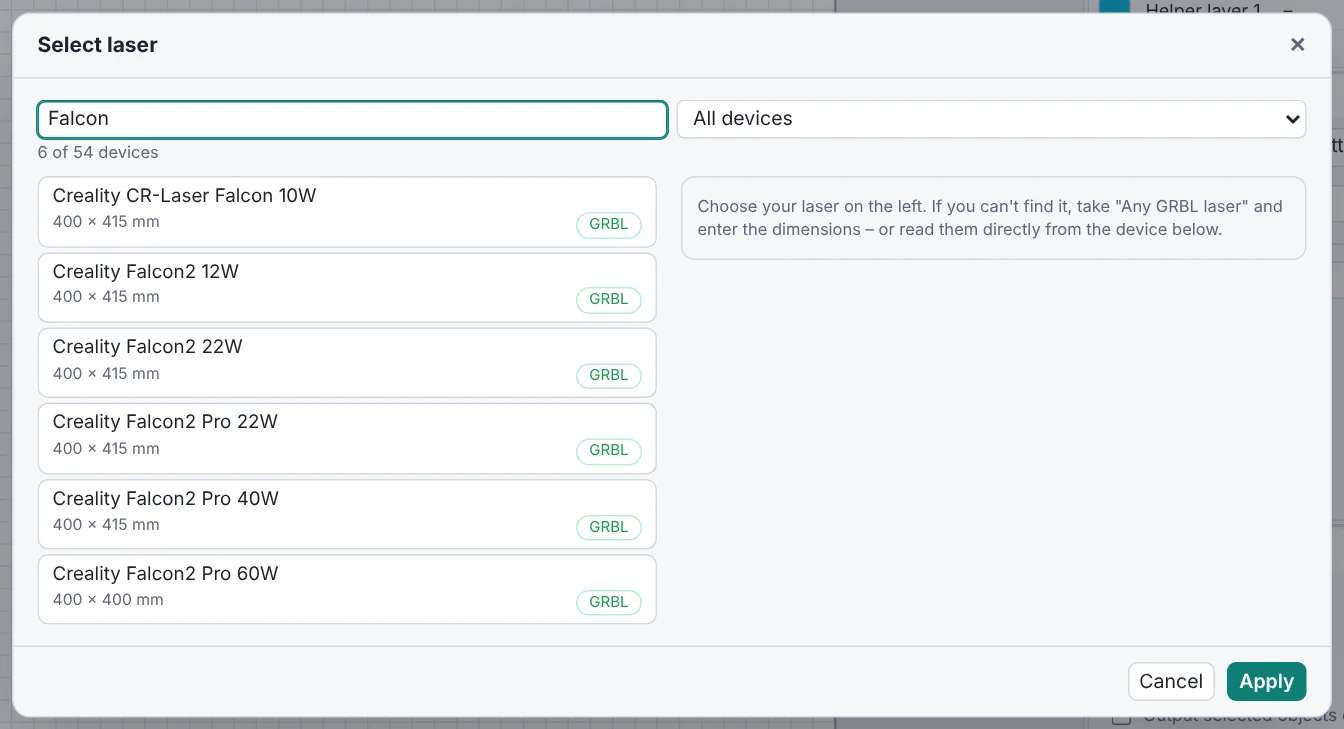
Supported Falcon models
All Falcon models use a GRBL controller. BeamSketch knows their work area and sets it automatically when you pick one:
| Model | Work area |
|---|---|
| CR-Laser Falcon 10W | 400 × 415 mm |
| Falcon2 12W, Falcon2 22W | 400 × 415 mm |
| Falcon2 Pro 22W, Falcon2 Pro 40W | 400 × 415 mm |
| Falcon2 Pro 60W | 400 × 400 mm |
I've tested the Falcon 10W myself. The values for the other models come from the manufacturer's pages – if you own one, I'd love to hear how it works for you.
Setup in five steps
- Open BeamSketch: go to beamsketch.com/app in Chrome or Edge on a computer. No sign-up needed.
- Select your laser: the setup assistant starts on its own. Type “Falcon” into the search and click your model. Later you'll find it under File → Select laser.
- Connect: switch on the Falcon, plug it in via USB and click Connect in the laser panel on the right. If Windows doesn't find the laser, the manufacturer's USB driver is often missing.
- Check the values (optional): with “Read values from the laser (USB)” in the setup assistant, BeamSketch takes the work area and limits straight from the controller.
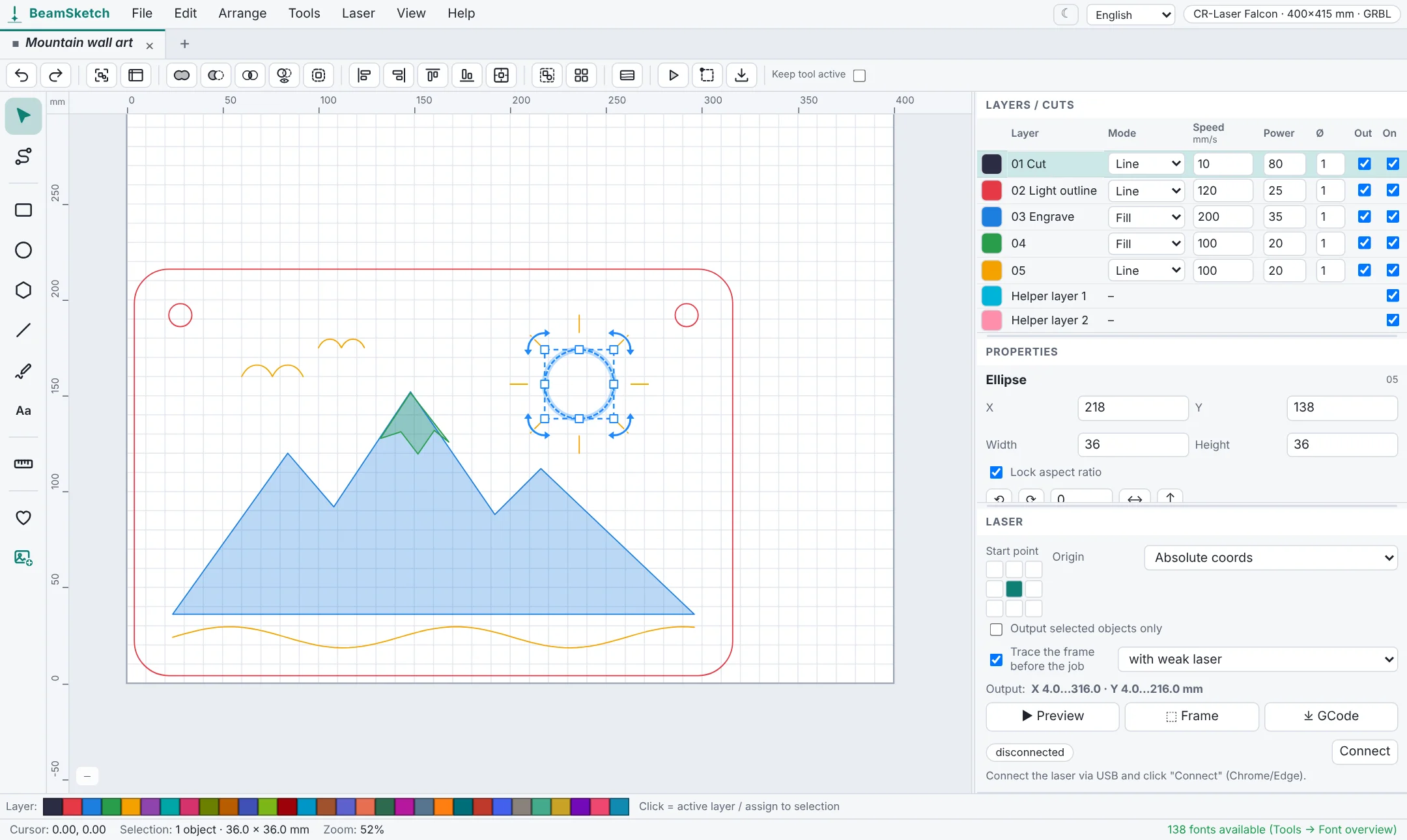
- First job: draw something or open a file, check the paths in the Preview, use Trace frame and start.
Tips for the Falcon
- Origin: the Falcon has limit switches and homes on startup. That's why BeamSketch uses absolute coordinates by default – the position on the canvas matches the position on the work area.
- Finding settings: Tools → Create material test engraves a grid with graded speeds and powers, so you quickly find the right values for your wood, leather or acrylic.
- Good starting values are in the material library (Ctrl+M). Treat them as a starting point – every material is a little different.
- Framing before the job is on by default: the head traces the outline with a weak laser before the job starts.
No USB? Save the GCode
Using Firefox or Safari, or the laser isn't next to your computer? Save the job with Save GCode and transfer the file to the laser another way.
Lasers are dangerous: wear safety glasses, never leave the laser unattended, make sure there's ventilation and keep a fire extinguisher at hand. Never laser PVC. Creality and Falcon are trademarks of their owners; BeamSketch is an independent project.